
Help Center
Easy guides to help you get started and make the most of Claim Tamer.
Getting Started
New to Claim Tamer? Start here to set up your account and create your first claim.
Create Admin Account
Admin accounts are created by the person setting up the company. This user manages the account, invites team members, and is responsible for the company’s subscription and usage.
It is recommended to set up your account on a computer so you can easily scan the QR code with your phone during 2FA setup.
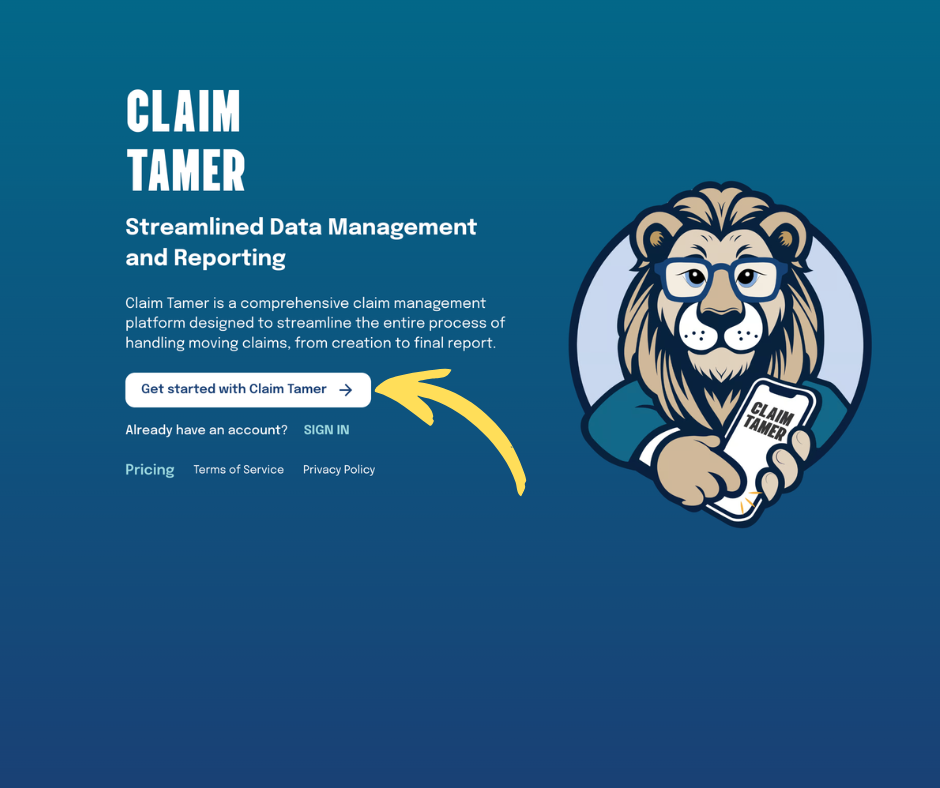
1. Go to www.claimtamer.app
Click on the Get Started with Claim Tamer button.
You can also review our Terms of Service and Privacy Policy from this page.
2. Create Login
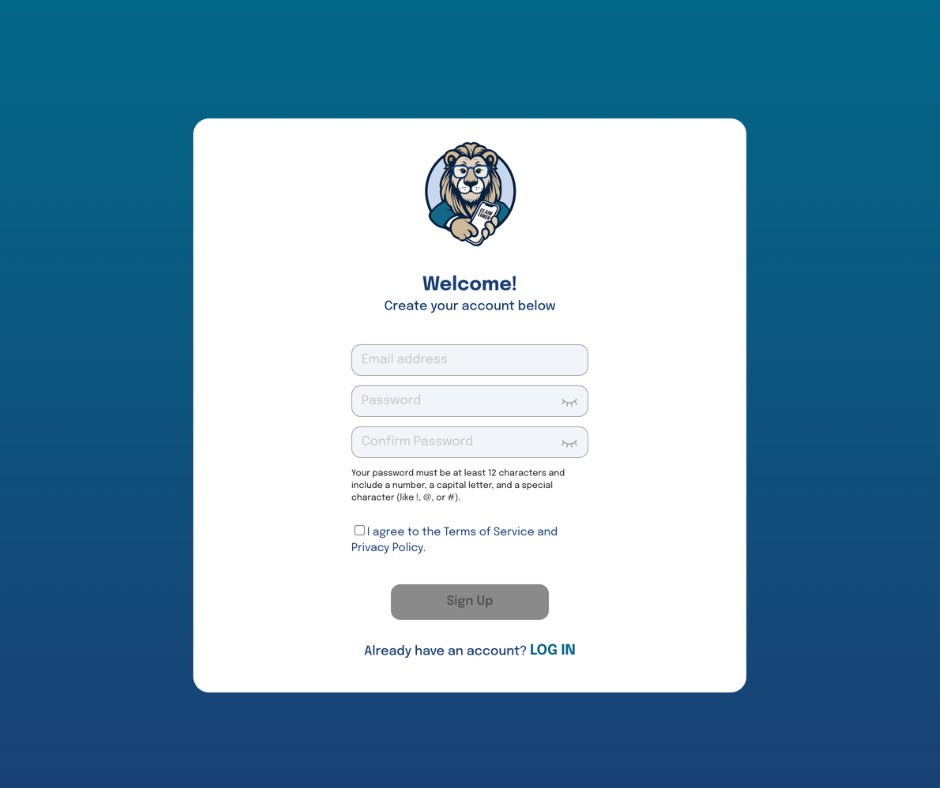
Enter your email and password. Check the "I agree to the Terms of Service and Privacy Policy" acknowledgement.
Then click Next
Password requirements: Your password must be 12 characters and include at least one number, one capital letter and one non-alphanuemeric character.
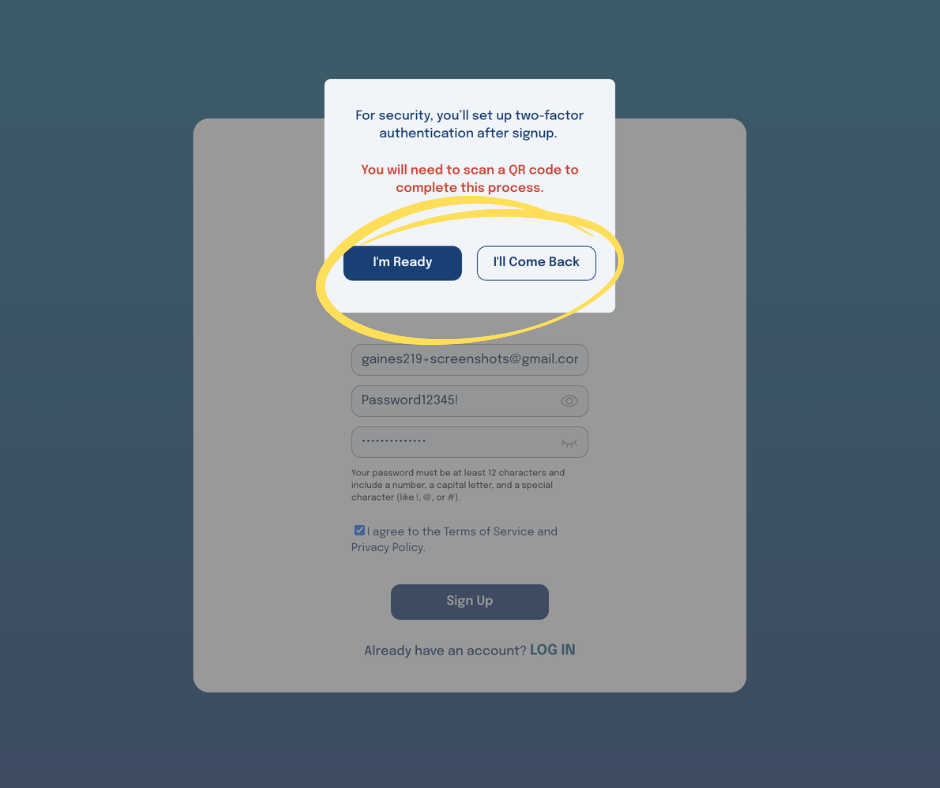
Before continuing, you’ll see a message explaining that Two-Factor Authentication (2FA) is required for security. To complete setup, you’ll need an authenticator app (such as Google Authenticator or Authy) installed on your phone and be able to scan a QR code.
If you’re ready to complete this step, click “I’m Ready.”
If not, you can select “I’ll Come Back” and return later, but 2FA setup will be required to finish creating your account.
3. Select Account Type
Select the type of account you want to setup — Company Admin or Employee.
In this case, select Company Admin.
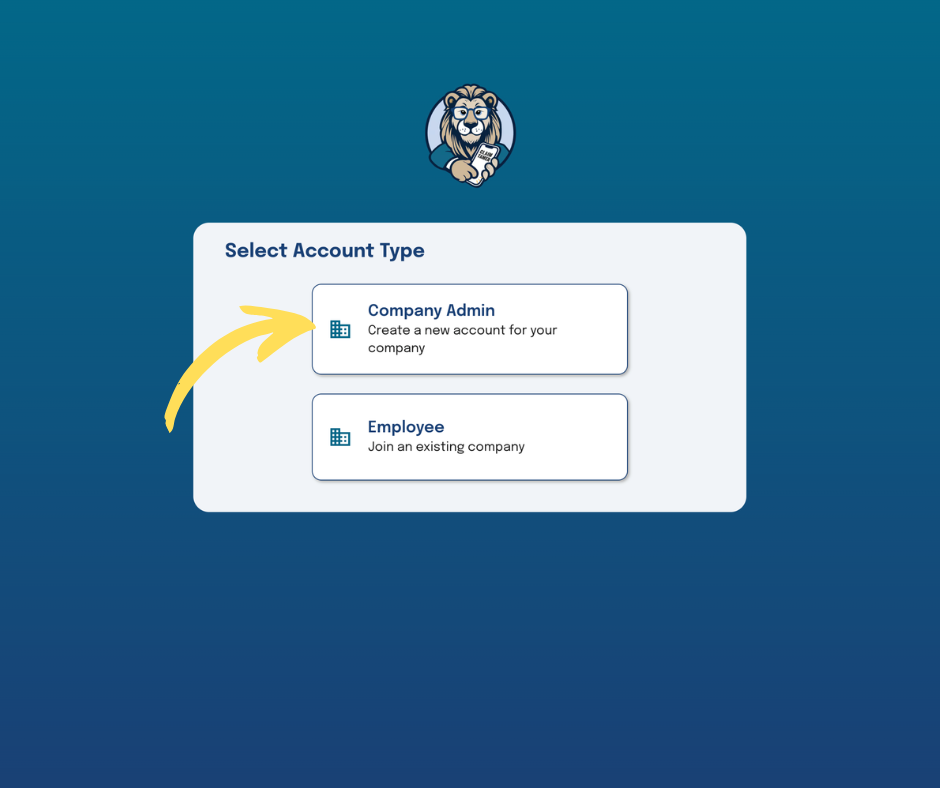
The Company Admin is responsible for setting up and managing the company account, including billing and team access. Employees join the company using a code and can create claims, but only see claims they are given access to. If you are joining a company, follow the Employee Account setup instructions.
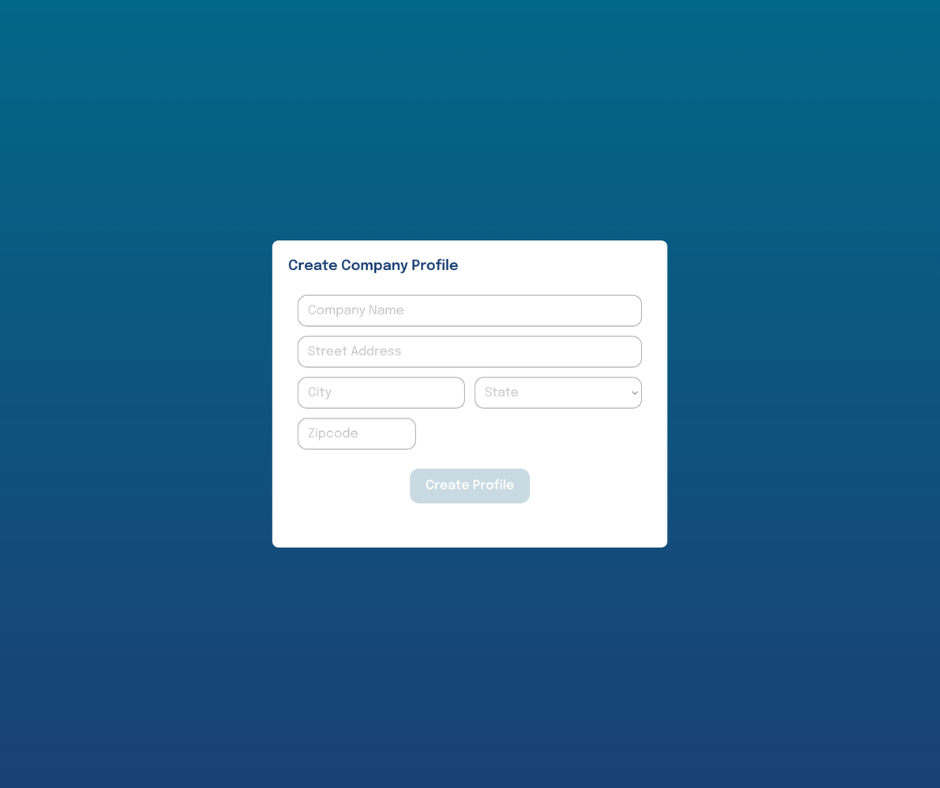
3. Select Company Profile
Enter your company name and address, then click Create Profile.
You will received an email with your company code. This is the code you will give to your employees/team members to join your company.
The Company Admin is responsible for setting up and managing the company account, including billing and team access. Employees join the company using a code and can create claims, but only see claims they are given access to. If you are joining a company, follow the Employee Account setup instructions.
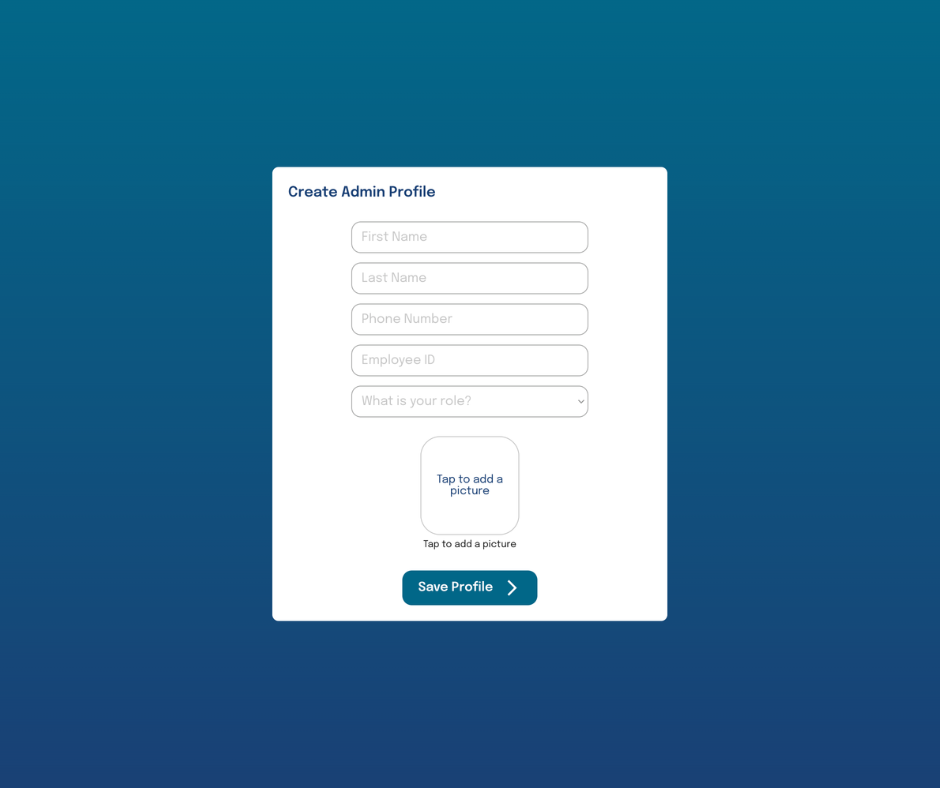
4. Create Your Admin Profile
Enter your name, contact information, and select your rolefrom the dropdown.
(Optional) Upload a profile picture
Click Save Profile
5. Select a Subscription Plan
You will be redirected to Stripe to complete your payment
After payment, you will return to Claim Tamer on the Payment Success page
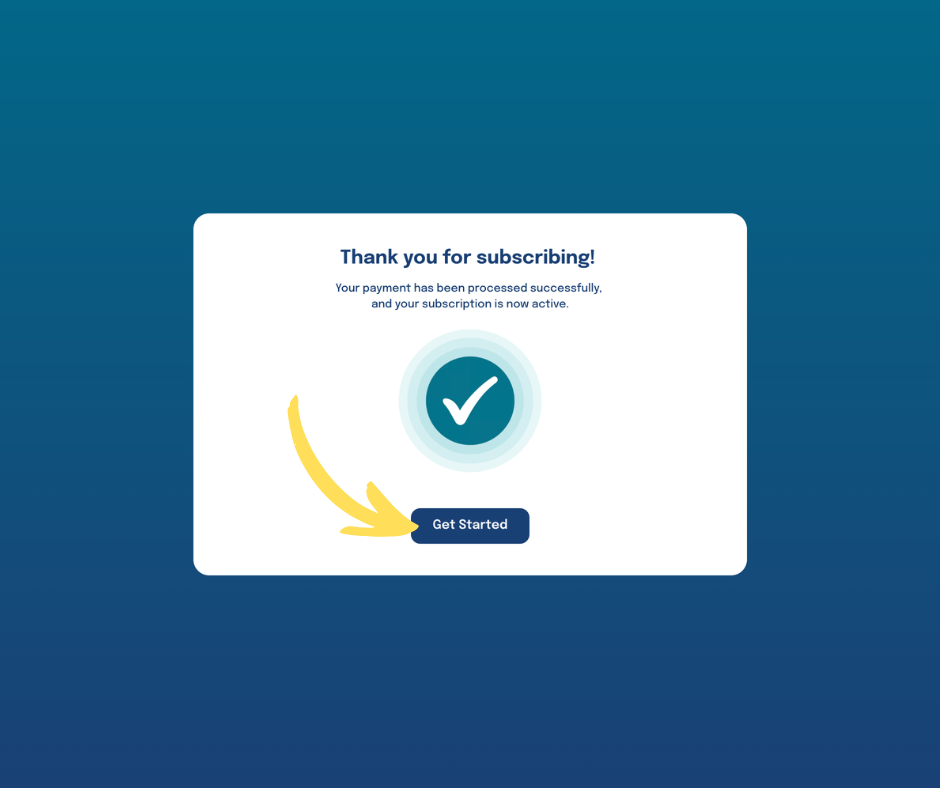
6. Payment Success!
Click the Get Started button.
Create an Employee Account
Employee accounts are for team members joining an existing company. You will need a Company Code from your Company Admin to complete setup.
1. Go to www.claimtamer.app
Click on the Get Started with Claim Tamer button.
You can also review our Terms of Service and Privacy Policy from this page.
2. Create Login
Enter your email and password. Check the "I agree to the Terms of Service and Privacy Policy" acknowledgement.
Then click Next
You will be navigated to the Select Account Type page.
Before continuing, you’ll see a message explaining that Two-Factor Authentication (2FA) is required for security. To complete setup, you’ll need an authenticator app (such as Google Authenticator or Authy) installed on your phone and be able to scan a QR code.
If you’re ready to complete this step, click “I’m Ready.”
If not, you can select “I’ll Come Back” and return later, but 2FA setup will be required to finish creating your account.
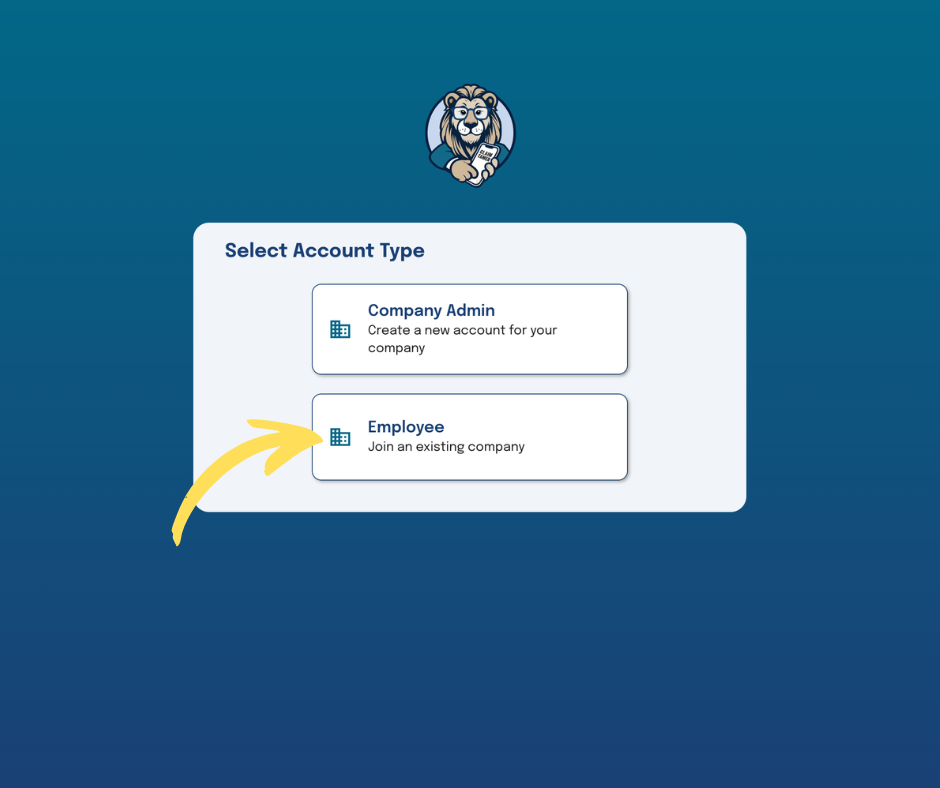
3. Select Account Type
Select the type of account you want to setup — Company Admin or Employee.
In this case, select Employee.
Employees join the company using a code and can create claims, but only see claims they are given access to. If you are joining a company, follow the Employee Account setup instructions.
3. Create Employee Profile
Step 1:
Enter your company code, then click the search icon.
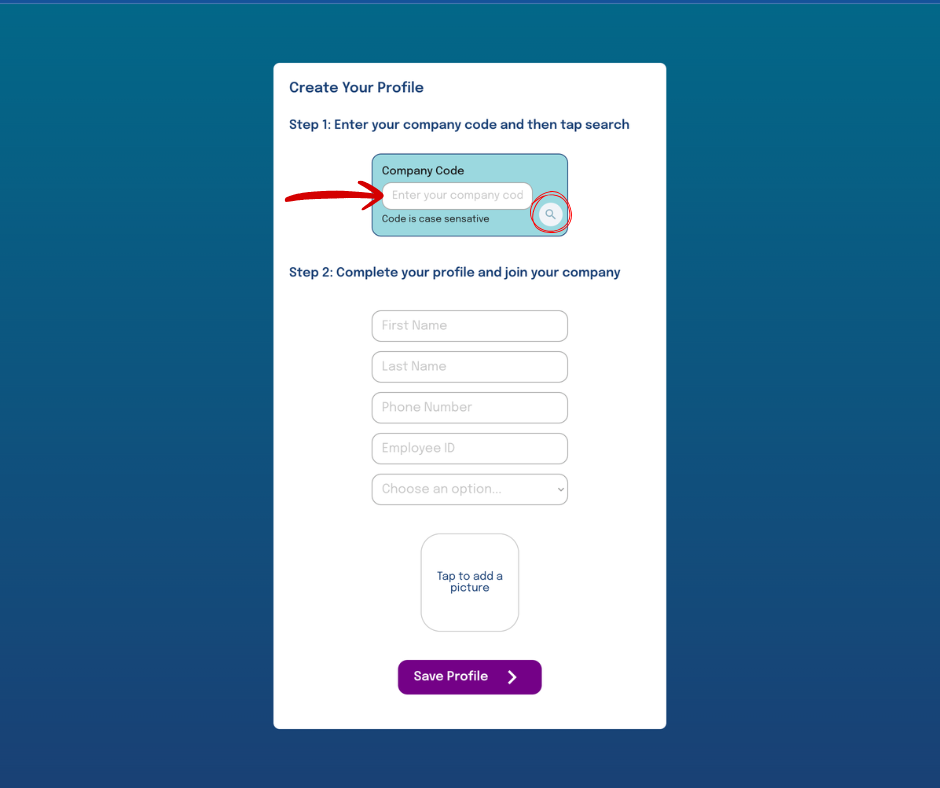
Step 2:
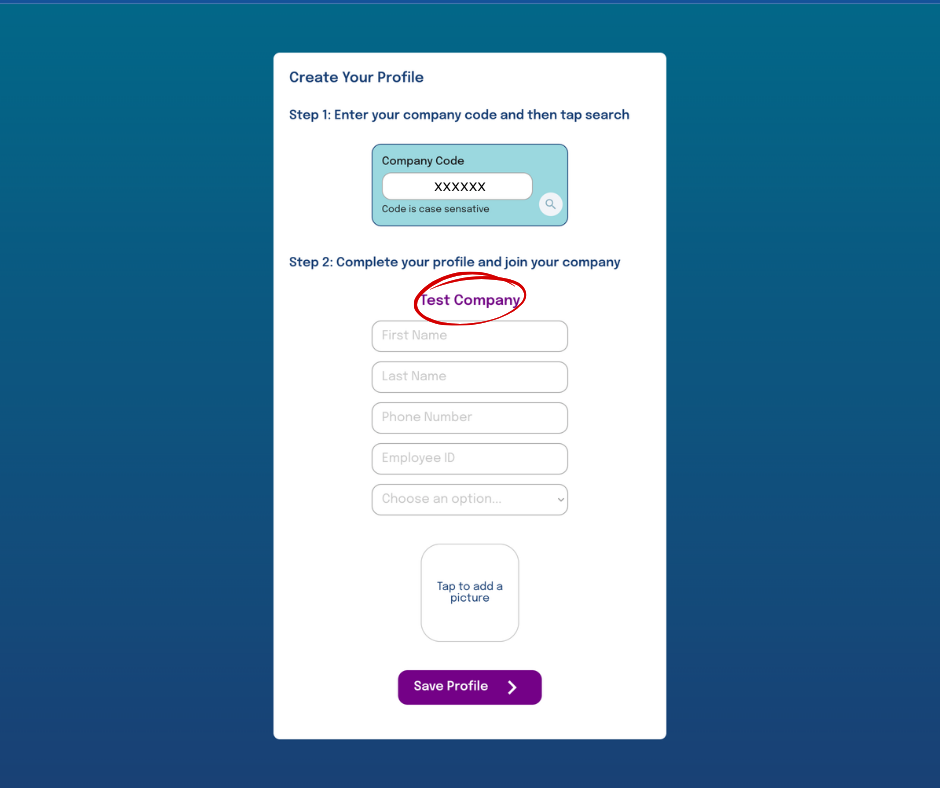
If the company code is correct and has an active subscription, you will see the company name populate above the name input field.
Complete your User Profile.Enter your name, contact information, and role.
(Optional) Upload a profile picture
Click Save Profile
7. Set Up Two-Factor Authentication
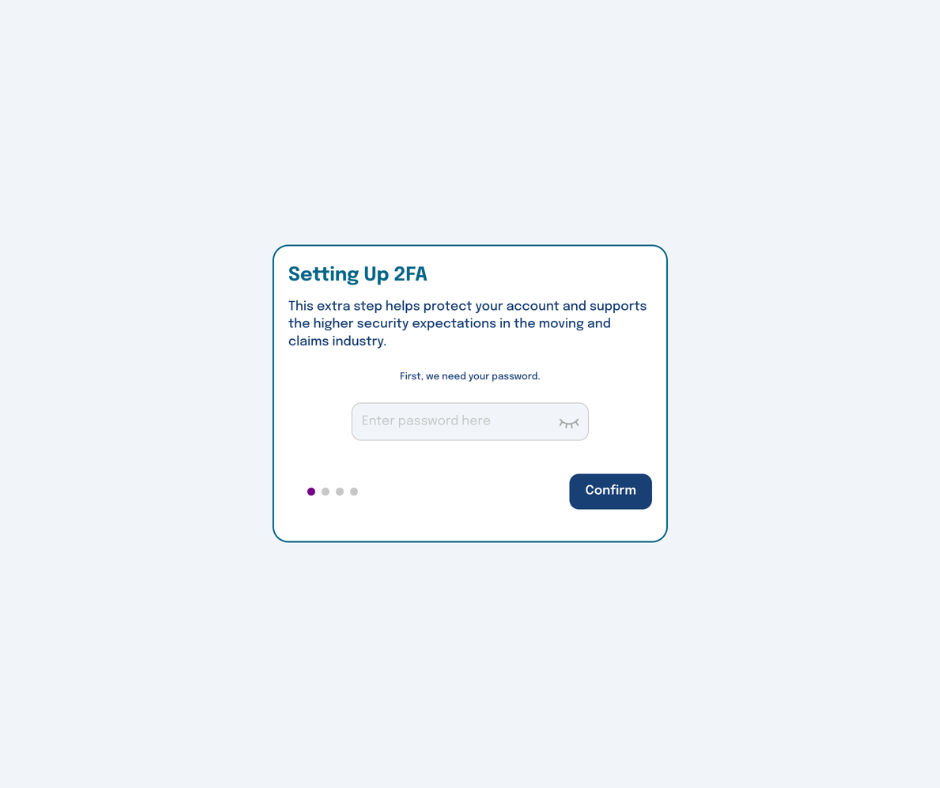
Begin set up of Two-Factor Authentication (2FA)
Enter your password — the same one you created for logging into the app.
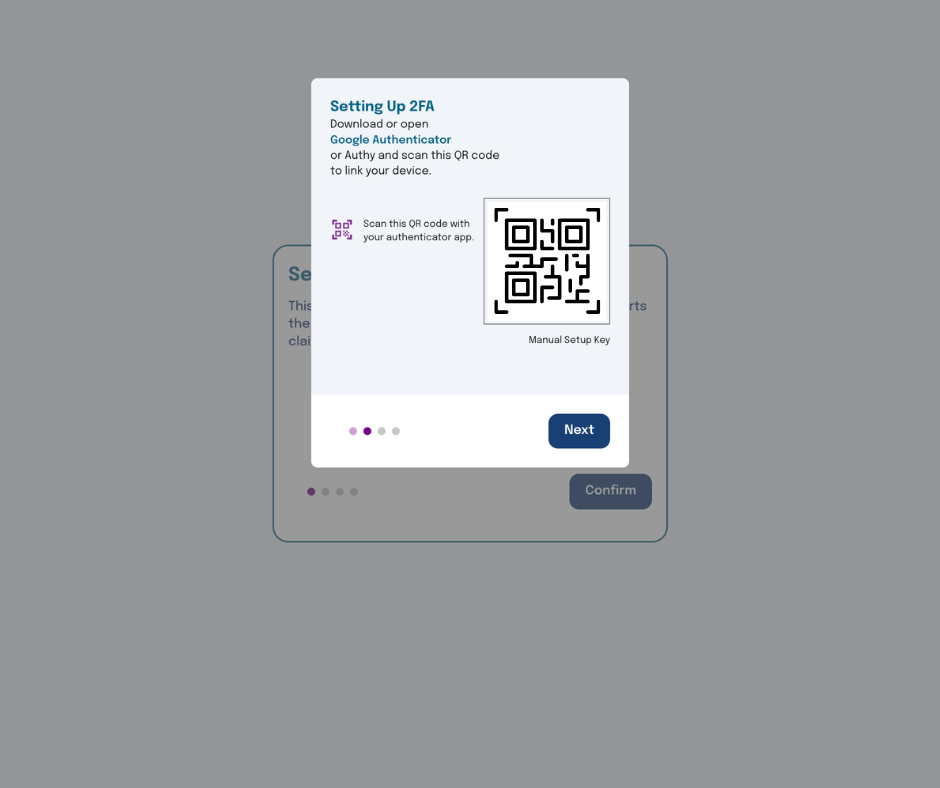
Scan the QR code with your authentication app. Click Next.
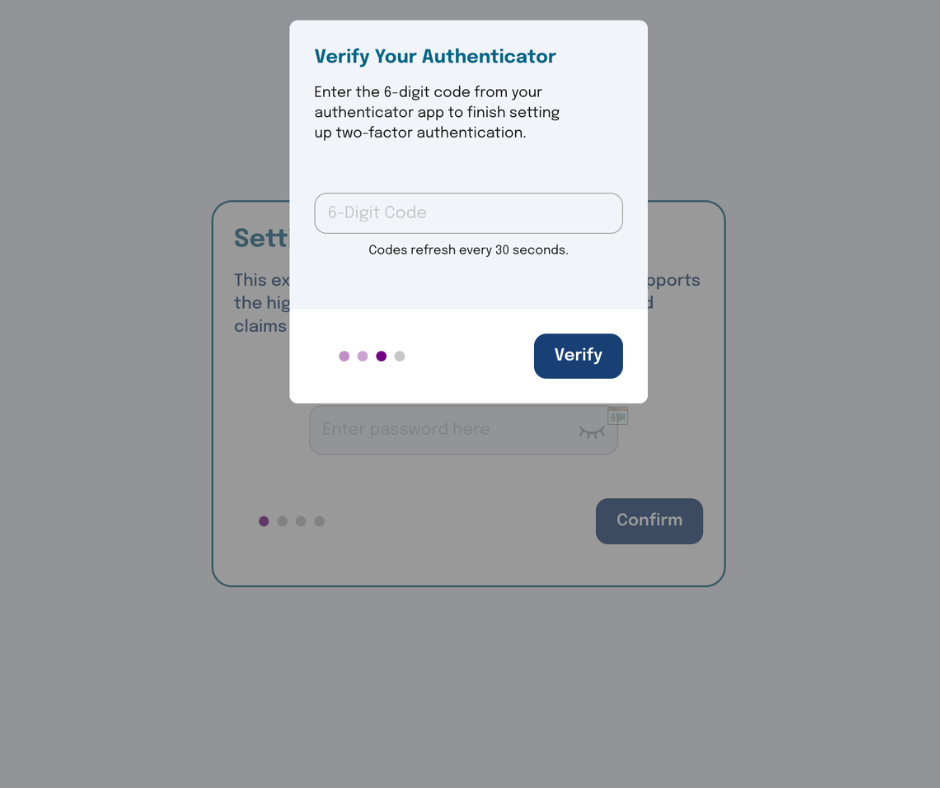
Enter the 6-digit code from your authenticator app to verify your setup.
Click Verify.
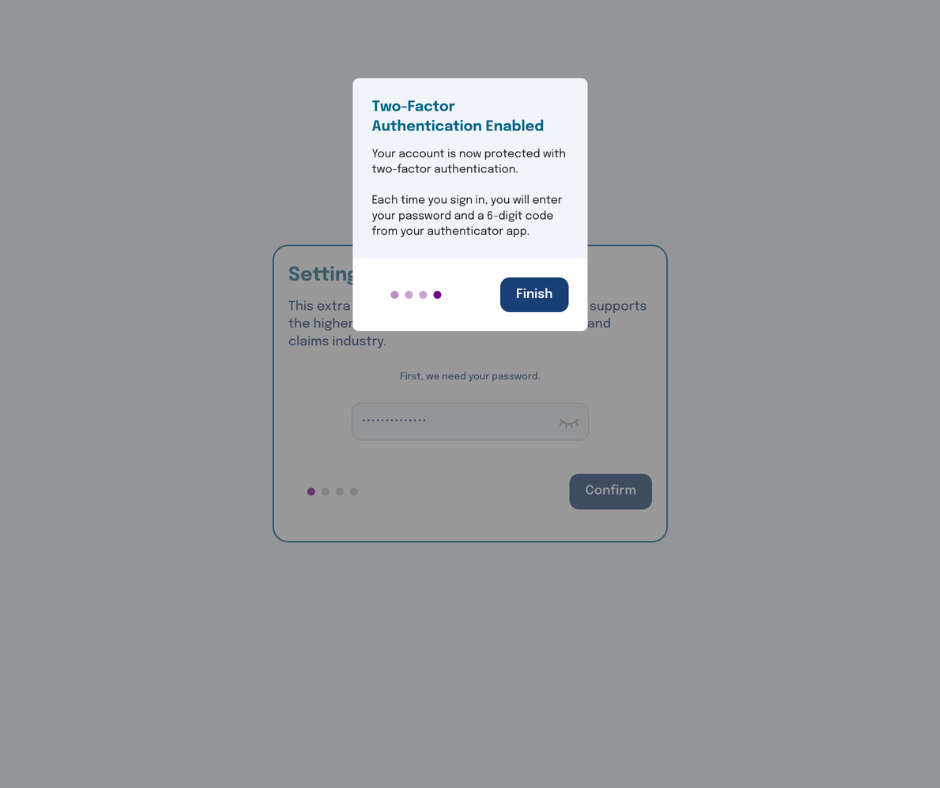
Success! You have enabled two-factor authentication.
Click Finish.
Finish Setup or Can’t Log In
If you started setting up your account but didn’t finish (especially the Two-Factor Authentication step), you won’t be able to log in until setup is complete.
Didn't Finish Creating Your Account
Go to claimtamer.app/sign_in
Enter your email and password.
Click Log in.
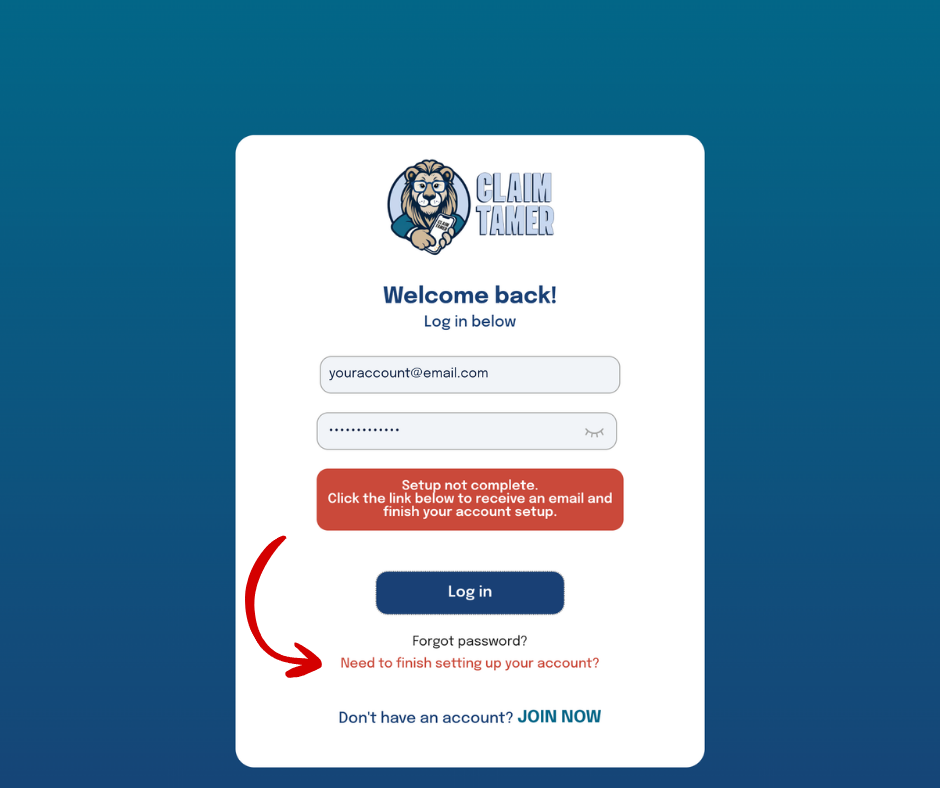
If your account setup is incomplete, you will see a notification prompting you to finish setting up your account.
- Click the “Need to finish setting up your account?” link below the Log in button
- An email will be sent to your address with a link to continue setup
- Open the email and click the link
- Follow the steps to complete your account setup (see hlep above if you are not sure how to setup your account).
Forgot Password?
Go to claimtamer.app/sign_in
Enter your email address in the email field.
Click the “Forgot password?” link below the Login button
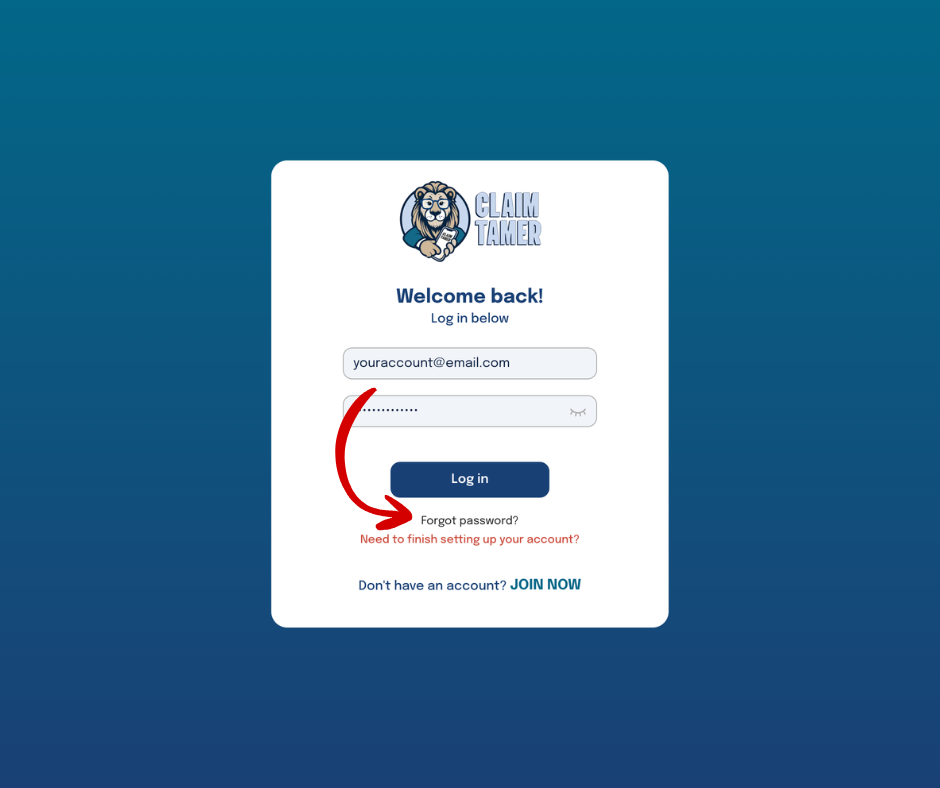
You will see a notification that a reset link has been sent to your email
Check your email and open the password reset message
Click the link and follow the prompts to create a new password
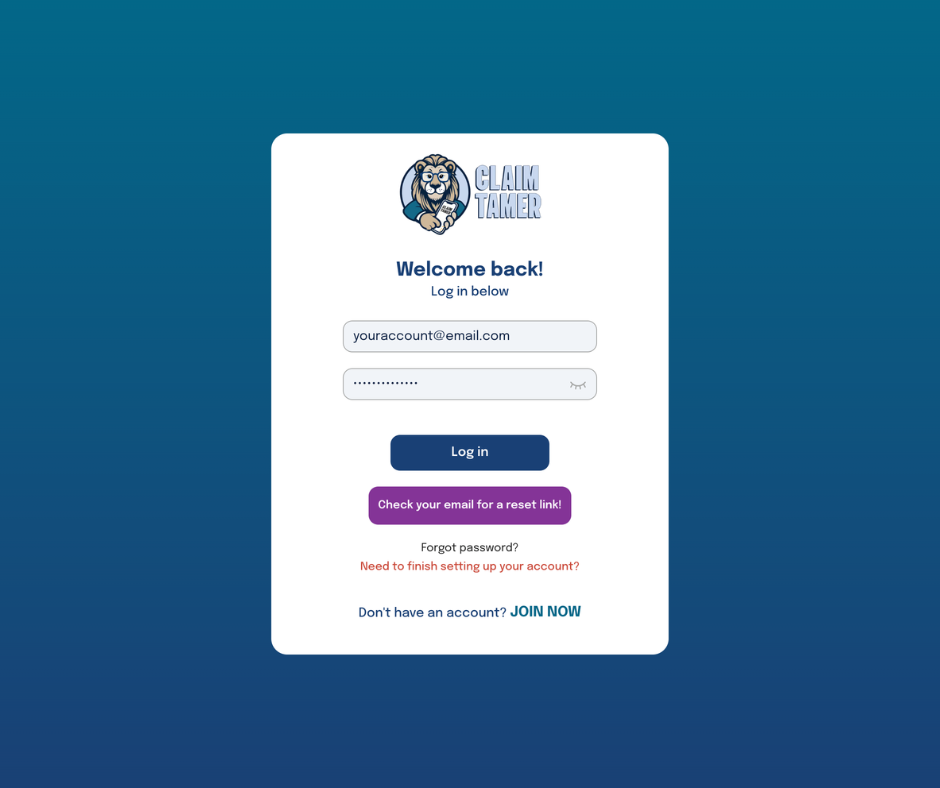
Finish Setup or Can’t Log In
If you started setting up your account but didn’t finish (especially the Two-Factor Authentication step), you won’t be able to log in until setup is complete.
Didn't Finish Creating Your Account
Go to claimtamer.app/sign_in
Enter your email and password.
Click Log in.
If your account setup is incomplete, you will see a notification prompting you to finish setting up your account.
- Click the “Need to finish setting up your account?” link below the Log in button
- An email will be sent to your address with a link to continue setup
- Open the email and click the link
- Follow the steps to complete your account setup (see hlep above if you are not sure how to setup your account).
Forgot Password?
Go to claimtamer.app/sign_in
Enter your email address in the email field.
Click the “Forgot password?” link below the Login button
You will see a notification that a reset link has been sent to your email
Check your email and open the password reset message
Click the link and follow the prompts to create a new password
Request a Feature or Open a Ticket
Lorem ipsum dolor sit amet, consectetur adipiscing elit, sed do eiusmod tempor incididunt ut labore et dolore magna aliqua.